About patient intake forms
Intake forms are only available to those enrolled in the Electronic Health Records (EHR) product.
When you use patient intake forms with RXNT, your patient documents are automatically saved to the Patient Dashboard in the documents section. This means your front desk and records staff don’t have to manually scan and upload intake documents to the patient's chart—RXNT takes care of it for you.
Our intake forms are fully customizable and include a variety of pre-built components, along with optional custom ones. You have full control over the type and layout of the intake form options. Using intake forms with RXNT lets your practice provide patients with these documents as soon as their appointment is scheduled, delivering them electronically.
Use intake forms to get your patient's full demographic profile by using Quick Add to create the patient in RXNT. Then, send the patient an intake form to collect their demographics and automatically add the details to their profile. Learn more about automatic demographic sync.
Intake form management
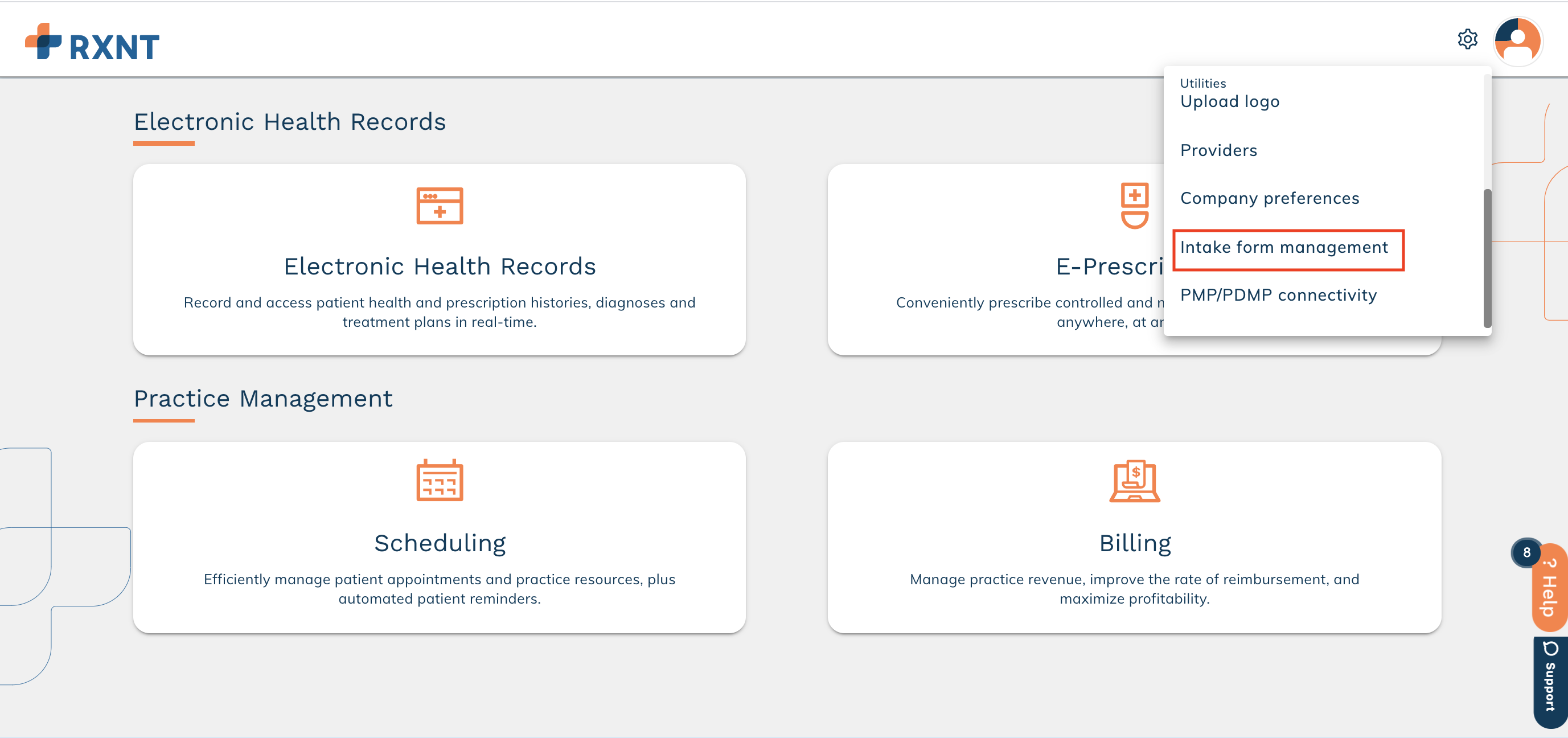
Log into RXNT and select Intake Form Management from Utilities.
Create a new intake form
Click + Intake Form.
Name your form
Complete the Form name field (required).
Scoring
Scoring can standardize how responses are understood. This makes it easier for clinicians to quickly evaluate severity levels (like “mild” versus “severe”), spot trends, and make more consistent, data-driven clinical decisions.
If you’re planning to include scoring on your intake form (not required), select one of the following methods to summarize the scores once the form is completed:
- Total Score
- Average Score
- Scoring Breakdown
Assigning score values to the answers patients provide is done within the custom components. For more details, please refer to the section below titled Add custom component(s).
Use the tabs below to learn more about each option.
The total score sums up all the answers with a score value to provide an overall score. This approach can help you better assess severity compared to simply noting yes/no symptoms, for example. It also makes intake forms easier to follow and track over time, allowing you to see improvements or changes more clearly.
The example depicted below includes a severity score for psychiatric symptoms.
Select Total Score from the Scoring Summary dropdown menu, then enter your Legend Title. To create a score key, or legend, that helps you see exactly where the patient's score falls on your scale, just click Add Entry (this step is optional).
Add as many entries as needed for your legend.
Below is an example of what a scored intake form looks like to the provider after the patient completes it, including the Total Score Scoring Summary, Legend Title, and the legend. If no entries are added to the legend key, only the Total Score and Legend Title will be shown.
The average score combines all the answers with a score value to give you an overall average. This approach can help you better assess severity compared to simply noting yes/no symptoms, for example. It also makes intake forms easier to follow and track over time, allowing you to see improvements or changes more clearly.
The example depicted below includes a severity score for psychiatric symptoms.
Select Average Score from the Scoring Summary dropdown menu, then enter your Legend Title. To create a score key, or legend, that helps you see exactly where the patient's score falls on your scale, just click Add Entry (this step is optional).
Add as many entries as needed for your legend.
Below is an example of what a scored intake form looks like to the provider after the patient completes it, including the Average Score Scoring Summary, Legend Title, and the legend. If no entries are added to the legend key, only the Total Score and Legend Title will be shown.
The Scoring Breakdown scoring summary organizes score values in a grid format, displaying individual category scores such as anxiety, mood, or sleep in separate rows or columns. Instead of giving just one overall number (total or average), the table highlights which areas are most impacted. This makes it easier for providers to compare values for things like symptoms or severity and pinpoint key priorities for care.
The example depicted below includes a severity score for psychiatric symptoms.
Select Scoring Breakdown from the Scoring Summary dropdown menu, then enter your Legend Title. To create a score key, or legend, that helps you see exactly where the patient's score falls on your scale, just click Add Entry (this step is optional).
Add as many entries as needed for your legend.
Below is an example of what a scored intake form looks like to the provider after the patient completes it, including the Scoring Breakdown Scoring Summary, Legend Title, and the legend. If no entries are added to the legend key, only the Total Score and Legend Title will be shown.
Add prebuilt component(s)
Prebuilt components include standard patient demographics and insurance fields. You can add prebuilt components to your intake form by selecting all or a specific number from the Prebuilt components list on the left, then clicking the forward arrow to move them to the Selected components list on the right.
- First name
- Middle name
- Last name
- SSN
- Date of birth
- Preferred name
- Preferred phone
- Home phone number
- Cell phone number
- Work phone number
- Other phone number
- Marital status
- Employment status
- Emergency contact
- Ethnicity
- Sexual orientation
- Gender identity
- Preferred language
- Time zone
- Preferred communication method
- Patient sex
- Race
- Address
- Primary insurance
- Secondary insurance
To remove components, select their corresponding checkbox, then click the back arrow.
Make fields required
You can choose to make any prebuilt components required if you want. Just click the Required toggle, or leave it off to keep the component optional on the intake form.
Add custom component(s)
Start by entering a field name or question to show to the patient. Next, select a component type and click Add. Some component types might need additional information (like drop-down options, radio buttons, or a linear scale). Check out the examples below for more details.
Expand the options below to see an example of each custom component along with instructions on how to create them.
To create a text box, enter your question or statement in the Name your field section, and choose Text box from the Component type dropdown menu. When finished, click Add.
This field is a free text box for the patient, allowing up to 500 characters. It will look like this to the patient:
To create a phone number field, enter your question or statement in the Name your field section, and choose Phone number from the Component type dropdown menu. When finished, click Add.
This field is formatted to accept a ten-digit phone number, so the patient can enter the indicated phone number easily. It will look like this to the patient:
To create a date picker field, enter your question or statement in the Name your field section, and choose Date picker from the Component type dropdown menu. When finished, click Add.
This field is formatted to accept a date (mm/dd/yyyy), so the patient can click the calendar icon, then locate the intended date easily. It will look like this to the patient:
To create a heading, enter your question or statement in the Name your field section, and choose Heading from the Component type dropdown menu. When finished, click Add.
This field is meant for displaying larger text, making it helpful for titles, headings, or highlighting specific instructions. It doesn’t have any input fields for the patient to fill out. You can use this heading to separate sections of your intake form, like "Personal Information" and "Medical Information." Here’s how it will look to the patient:
To create an address field, enter your question or statement in the Name your field section, and choose Address from the Component type dropdown menu. When finished, click Add.
This field is formatted to accept a full address, including Address 1, Address 2, Zip, City, and State, making it easy for the patient to enter the required information. The City and State fields are dropdown menus for convenience. It will look like this to the patient:
To create a text area, enter your question or statement in the Name your field section, and choose Text area from the Component type dropdown menu. When finished, click Add.
This field is formatted to accept unlimited characters, and will look like this to the patient:
To create a number field, enter your question or statement in the Name your field section, and choose Number from the Component type dropdown menu. When finished, click Add.
This field is formatted to accept any number, and will look like this to the patient:
To create a single select drop-down field, enter your question or statement in the Name your field section, and choose Single select drop-down from the Component type dropdown menu. The Options field will appear below for further customization.
Please enter the response options for the patient below. Click Add option to open a new field where you can add another option. You can repeat this as many times as needed to complete the list of available choices for the patient.
If you want, you can assign a score to each response option, but it’s not required. Giving a specific value (either numeric or categorical) to each answer choice on the intake form can help standardize how responses are understood. This makes it easier for clinicians to quickly evaluate severity levels (like “mild” versus “severe”), spot trends, and make more consistent, data-driven clinical decisions.
When finished, click Add.
This field is set up to offer the patient the options you've provided, allowing them to select only one option as their response. It will look like this to the patient:
To create a multi select drop-down field, enter your question or statement in the Name your field section, and choose Multi select drop-down from the Component type dropdown menu. The Options field will appear below for further customization.
Please enter the response options for the patient below. Click Add option to open a new field where you can add another option. You can repeat this as many times as needed to complete the list of available choices for the patient.
If you want, you can assign a score to each response option, but it’s not required. Giving a specific value (either numeric or categorical) to each answer choice on the intake form can help standardize how responses are understood. This makes it easier for clinicians to quickly evaluate severity levels (like “mild” versus “severe”), spot trends, and make more consistent, data-driven clinical decisions.
When finished, click Add.
This field is designed to give the patient all the options you've provided, so they can choose all that apply to them. It will look like this to the patient:
To create a radio select field, enter your question or statement in the Name your field section, and choose Radio select from the Component type dropdown menu. The Options field will appear below for further customization.
Please enter the response options for the patient below. Click Add option to open a new field where you can add another option. You can repeat this as many times as needed to complete the list of available choices for the patient.
If you want, you can assign a score to each response option, but it’s not required. Giving a specific value (either numeric or categorical) to each answer choice on the intake form can help standardize how responses are understood. This makes it easier for clinicians to quickly evaluate severity levels (like “mild” versus “severe”), spot trends, and make more consistent, data-driven clinical decisions.
When finished, click Add.
This field is designed to present the patient with all the options you’ve provided, letting them choose just one option using a radio button. It will look like this to the patient:
To create a linear scale field, start by entering your question or statement in the Name your field section. Then, select Linear scale from the Component type dropdown menu. Fill in the numbers for your scale in the fields labeled ____ to ____. The minimum is 0 and the maximum is 10. Finally, add the labels for the low and high ends of your scale, such as no pain and excruciating pain.
When finished, click Add.
This field provides the patient with a labeled and numbered scale, so they can select the point that best matches how they feel based on the question or prompt. It will look like this to the patient:
Arrange components
After adding all your components, whether prebuilt and/or custom, you can start organizing your intake form.
To rearrange a selected component, just hover over it and you'll see the grid icon appear. Click and drag it to the spot you want, and repeat this process until your form is arranged just the way you like.
Preview and save
Click Preview to see how the intake form will appear to patients.
Review the form and scroll to the bottom to review your options.
Click Modify to return to the previous screen and continue editing your form. Click Save to create the intake form.
Intake Forms cannot be edited once they have been saved. You will be asked to confirm that you want to save the form.
Save as draft and finish later
If you're not ready to finish an intake form you're working on, you can save it as a "Draft" and come back to it later. To save a form as a draft, just click Save Draft on the create intake form page OR in the intake form preview.
Draft intake forms will appear in the intake form list with a Draft tag and can be completed by clicking on the edit icon.
Draft intake forms are considered 'incomplete' and will not be available to send to patients until they have been completed and saved from the intake form preview page.
Create a new form from an existing intake form
Navigate to the existing form in the list and click on the Duplicate icon.
Please update the form name and make any needed adjustments within the intake form components.
When the form is updated to your liking, Preview and save the form as normal.
Both active and inactive intake forms can be duplicated. The new form created this way will automatically be saved to the active intake form list.
Use intake form library
Explore an intake form library containing a wide range of pre-built standardized forms that auto-calculate patient's total scores. Preview and add forms to the active list to send to patients. Once these forms are completed, providers can see the total score along with its screening results.
Click Intake form library to view all available pre-built intake forms.
Review forms and click a form name to preview.
The green text indicates forms that are currently in your active forms.
Once you have previewed the intake form, click Add selected form to add the intake form to your active forms.
To return to the library, scroll down and click Close.
Use the checkboxes on the left to select desired forms.
Click Add selected forms to add the intake form(s) to your active forms.
The selected pre-built intake forms will display in your list of active intake forms. You are unable to edit or duplicate the pre-built intake forms.
The pre-built intake forms will auto-calculate the patient's score once the form is completed. Click here to learn more!
Deactivate/reactivate an intake form
Deactivate
To deactivate an intake form, and prevent it from being sent to patients, click the Deactivate button (garbage can icon) on the active form list.
Confirm by clicking Deactivate once more.
The form will automatically move to the inactive list, and staff members and providers will no longer be able to send the form to patients. Patients who have already been sent this form, but haven't completed it yet, will still be able to complete the intake form.
Reactivate
Click the Inactive tab, then find the form you'd like to reactivate. Click its corresponding Reactivate icon to proceed.
Confirm by clicking Activate.
The form will automatically move to the active list, and the form will be available for staff and providers to send to patients.
Sending intake forms from the EHR
Navigate to the patient dashboard and select Patient Information from the navigation menu, or click the patient's name hyperlink to open the Patient Information window.
Click Patient Forms.
The window will open on the Consent Forms tab. Click the Intake Forms tab.
Select the intake forms you wish to send to the patient, then click Send.
Patients will be notified via email that there are items in the patient portal that require their attention. The patient is able to log into the PHR and complete the intake form. All completed patient intake forms will be saved to the Patient Documents section of the patient's dashboard under Electronic Patient Forms.
The date and timestamp indicating when the form was sent will display within the Last Sent Date column.
Once the patient completes the form on their portal, the date and timestamp indicating when the form was completed will display within the Last Completed Date column.
Sending intake forms from scheduling
In the RXNT Scheduling application, you have a few options for sending intake forms:
- While creating a new appointment
- From an appointment that’s already scheduled
- Directly from the patient’s profile
There is also an option to have patient forms automatically sent to a patient when a specific appointment type is scheduled. Click here to learn more!
Send intake forms from new appointments
When creating a new appointment, expand the Patient Forms section at the bottom of the page.
Please choose any consent and intake forms you'd like to send to the patient. Make sure to check the Intake Forms tab to find the intake forms. Once you've selected all the forms you want, click Save & Send.
The forms will be sent to the patient’s portal.
The Last Sent Date is updated as soon as the forms are sent, and the Completed Date is updated as soon as the patient completes the form.
Send intake forms from existing appointments
Open an existing appointment, then expand the Patient Forms section at the bottom of the page.
Please choose any consent and intake forms you'd like to send to the patient. Once you've selected all the forms you want, click Save.
The forms will be sent to the patient’s portal.
The Last Sent Date is updated as soon as the forms are sent, and the Completed Date is updated as soon as the patient completes the form.
Send intake forms from the patient profile
Navigate to the patient's profile, then click Patient Forms.
Please choose any consent and intake forms you'd like to send to the patient. Make sure to check the Intake Forms tab to find the intake forms. Once you've selected all the forms you want, click Save & Send.
The forms will be sent to the patient’s portal.
The Last Sent Date is updated as soon as the forms are sent, and the Completed Date is updated as soon as the patient completes the form.
Still need help? Contact us!
Have a great idea? Tell us about it!